
Desktop app
The xtralab desktop app is a standalone application for macOS (DMG) and Linux
(AppImage). It includes its own Python runtime, so it does not need Python,
pip, uv, or network access.
Download
Section titled “Download”Download for macOS (Apple Silicon)
Download for Linux (x64)
The buttons download the latest release. Older versions are on the
releases page. Builds from main
are workflow artifacts on the
Actions tab. The macOS app is
signed and notarized.
Open a project
Section titled “Open a project”-
Start the app. The launcher window opens.
-
Select Open folder…, or select a folder in Recent folders.
-
In Python environment, select the environment for notebook kernels. To use an interpreter that is not in the list, select Choose interpreter….
-
Select Open in xtralab.
Each project has its own JupyterLab server, window, and workspace. The open tabs and the panel layout are saved for each project.
Project environments
Section titled “Project environments”The launcher finds these Python environments in the project folder:
| Folder | Environment type |
|---|---|
.venv, venv, env |
Virtual environment |
.conda |
Conda environment |
.pixi/envs/<name> |
Pixi environment |
When you select an environment, xtralab registers a kernel for the project
that uses its interpreter. The JupyterLab server continues to run from the
bundled runtime. An environment is available as a kernel only when ipykernel
is installed in it.
The bundled ty language server uses the same environment. See
Language servers.
Tabs and windows on macOS
Section titled “Tabs and windows on macOS”Project windows follow the macOS setting Prefer tabs when opening documents (System Settings → Desktop & Dock):
| Setting value | Project windows open as |
|---|---|
| Always | Tabs in one window |
| Other values | Separate windows. To combine them, select Window → Merge All Windows. |
To open the launcher in a new tab, press Cmd+T or select + in the tab bar. The project that you open replaces the launcher tab.
Session restore
Section titled “Session restore”When you quit the app, it saves the open projects. When you start it again, it reopens them:
- The windows and tabs go back to their positions, and the last active project is selected.
- Each window restores its open files and panel layout.
- The launcher shows the progress while the servers start.
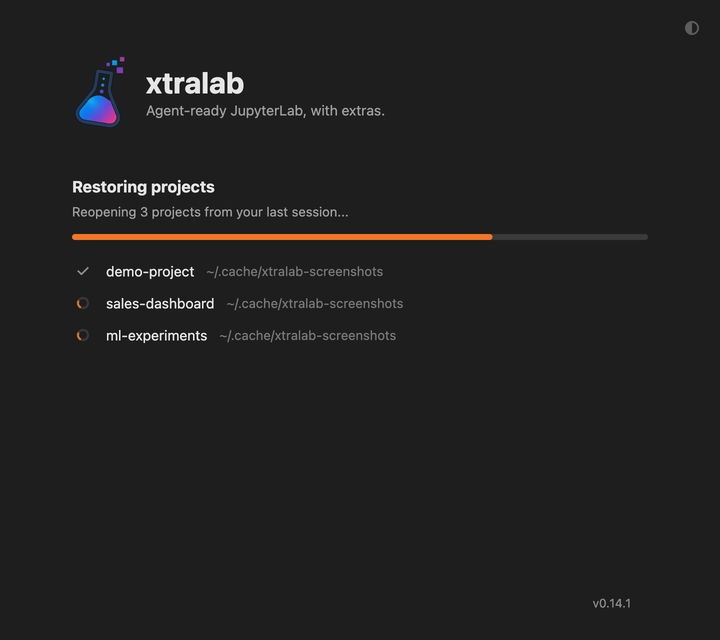
Windows that you close before you quit do not reopen. Tab groups that you make with the window manager (for example with Merge All Windows) reopen as separate windows.
Updates
Section titled “Updates”| Platform | Update method |
|---|---|
| macOS | The app checks for releases in the background and asks before it downloads one. When the download is complete, select Restart to update. To check now, select Check for updates in the launcher window. |
| Linux | No automatic updates. Download the new AppImage from the releases page. |
The launcher window shows the app version in its bottom corner.
Troubleshooting
Section titled “Troubleshooting”Notifications do not appear on macOS
Section titled “Notifications do not appear on macOS”The app shows native notifications for terminal notifications. macOS asks for permission the first time a notification fires.
-
Open System Settings → Notifications and select xtralab.
-
Make sure that Allow notifications is on. The app can be in this list with notifications off, even if macOS did not ask for permission.
-
If xtralab is not in the list, refresh the registration of the app bundle:
Terminal window /System/Library/Frameworks/CoreServices.framework/Frameworks/LaunchServices.framework/Support/lsregister -f /Applications/xtralab.app -
Quit and start the app again.
Build from source
Section titled “Build from source”The Electron app is in the desktop/ folder of the repository. See
CONTRIBUTING.md
for the architecture, local builds, and the release process.