
Agent launcher
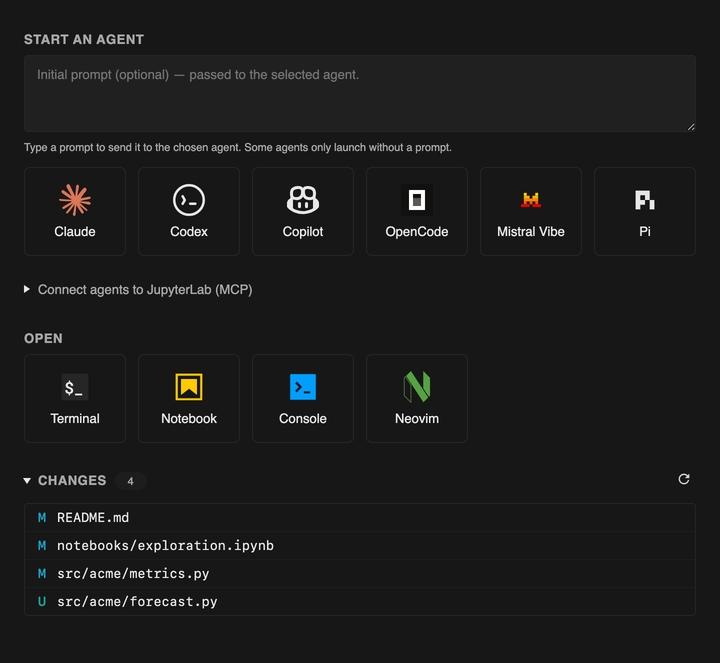
The xtralab launcher replaces the JupyterLab launcher. It opens in the main area when JupyterLab starts, and when you select + in the tab bar.
Start an agent
Section titled “Start an agent”-
Optional: type a prompt in the Start an agent box.
-
Select an agent.
The agent starts in a new terminal, in the project folder. If you typed a prompt, the agent gets it as its first prompt.
The launcher shows a button only for the agents whose command is on your
PATH.
Supported agents
Section titled “Supported agents”| Agent | Command | First prompt from the launcher |
|---|---|---|
| Claude Code | claude |
Yes |
| Codex | codex |
Yes |
| Antigravity | agy |
No |
| GitHub Copilot CLI | copilot |
Yes |
| Goose | goose |
No |
| OpenCode | opencode |
Yes |
| Kiro | kiro |
No |
| Mistral Vibe | vibe |
Yes |
| Pi | pi |
Yes |
The agents without first-prompt support start without the prompt. To add an agent, change a command, or hide a button, see Launcher entries.
Connect agents to JupyterLab
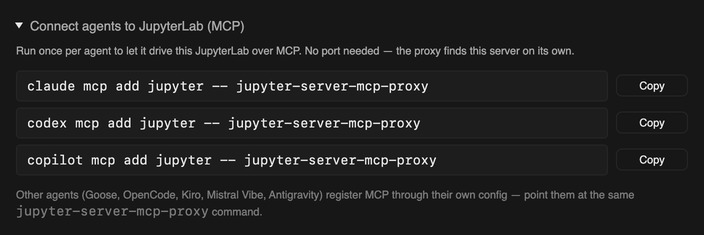
Section titled “Connect agents to JupyterLab”Expand Connect agents to JupyterLab (MCP) to see the command that registers the xtralab MCP server with each installed agent. Select Copy to copy a command, then run it in a terminal. See Connect agents with MCP.
Open a terminal, a notebook, or a console
Section titled “Open a terminal, a notebook, or a console”| Tile | Opens |
|---|---|
| Terminal | A terminal |
| Notebook | A notebook. The kernel starts when you select one. |
| Console | A console |
| Neovim | Neovim in a terminal. The tile shows Vim when Neovim is not installed. |
Open the diff of a changed file
Section titled “Open the diff of a changed file”The Changes list shows the modified (M) and untracked (U) files in the Git repository. Select a file to open its diff. To update the list, select the refresh button.