
Defaults and themes
xtralab changes some JupyterLab defaults. They are settings like all other JupyterLab settings: change them in the Settings Editor. Your user settings override the xtralab defaults. The full list is in the bundled configuration.
Menu bar
Section titled “Menu bar”The main menu bar is hidden. The menu button (☰) at the left of the top bar opens the same menus. In this documentation, menu paths such as Settings → Settings Editor start from this button.
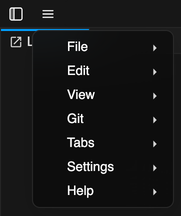
To show the menu bar, use one of these methods:
- Select View → Appearance → Show Menu Bar.
- In the Settings Editor, open xtralab menu bar and turn on
Show the menu bar (
visible).
Sidebar tabs
Section titled “Sidebar tabs”The activity bar (the row of sidebar tabs) is at the top of the sidebar. The left sidebar has these tabs:
| Tab | Default |
|---|---|
| Terminals | Shown |
| File Browser (xtralab) | Shown |
| Git | Shown |
| Search and Replace | Shown |
| Default File Browser | Hidden |
| Running Terminals and Kernels | Hidden |
To show or hide a tab, select View → Appearance → Sidebars, then select the tab. The setting for each tab is in xtralab sidebar in the Settings Editor.
Editor and notebook defaults
Section titled “Editor and notebook defaults”| Area | xtralab default |
|---|---|
| Completion | Shows completions as you type, with the documentation panel |
| Language server | Continuous hinting is on |
| Code editor | Auto-closing brackets, code folding, active line highlight, trailing whitespace highlight, and scroll past the end |
| JSON files | Open in the text editor |
| Notebooks | No kernel starts when you open a notebook. Cell execution timing is recorded. |
| Checkpoints | No .ipynb_checkpoints folders are created |
| Browser tab | The title shows the name of the project folder, after the name of the open file |
| Git panel | One click on a changed file opens its diff |
| Terminal font | MesloLGS NF |
| Quick open | Files that match .gitignore do not show |
| File icons | File-type icons from @pierre/trees in the file browser, the tabs, and the Git panel |
Keyboard shortcuts
Section titled “Keyboard shortcuts”xtralab adds these shortcuts. Cmd/Ctrl+Shift+F replaces the JupyterLab shortcut that shows the file browser.
| Shortcut | Action |
|---|---|
| Cmd/Ctrl+K | Open the omnibox |
| Cmd/Ctrl+. | Ask an agent about the selected code |
| Cmd/Ctrl+Shift+F | Open search and replace |
To change a shortcut, open Settings → Settings Editor → Keyboard Shortcuts.
Disabled extensions
Section titled “Disabled extensions”xtralab disables these JupyterLab plugins:
| Plugin | Feature |
|---|---|
@jupyterlab/application-extension:logo |
JupyterLab logo in the top bar |
@jupyterlab/application-extension:property-inspector |
Property inspector |
@jupyterlab/apputils-extension:announcements |
News and update announcements |
@jupyterlab/apputils-extension:running-sessions-status |
Running sessions item in the status bar |
@jupyterlab/extensionmanager-extension:plugin |
Extension manager |
@jupyterlab/toc-extension:tracker |
Table of contents |
@jupyterlab/notebook-extension:tools |
Notebook tools |
@jupyterlab/notebook-extension:update-raw-mimetype |
Raw cell MIME type metadata form |
@jupyterlab/metadataform-extension:metadataforms |
Metadata forms |
@jupyterlab/debugger-extension:main |
Debugger |
@axlair/jupyterlab_vim |
Vim key bindings |
@jupyter/docprovider-extension:statusBarTimeline |
Collaboration timeline slider |
To turn a plugin on again:
jupyter labextension enable <plugin>Themes
Section titled “Themes”xtralab installs these themes. It does not change the active theme.
| Theme | Variants |
|---|---|
| Pierre | Light, Dark |
| Cursor | Light, Dark |
| Day | Light |
| Night | Dark |
To select a theme, select Settings → Theme.