
Ask an agent
Ask an agent sends a prompt about the code that you select. The prompt contains your instruction, the file path, the line range, and the selected code.
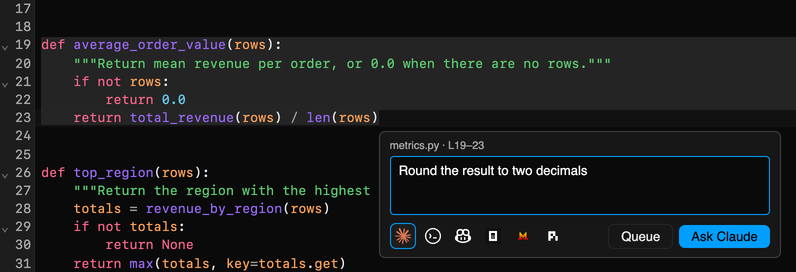
Ask about a selection
Section titled “Ask about a selection”-
Select code in a text editor or in a notebook cell.
-
Select Ask agent next to the selection, or press Cmd/Ctrl+..
-
Type an instruction.
-
Select the destination:
- New terminal and an agent icon: the agent starts in a new terminal.
- A running agent: the prompt goes to that terminal.
-
Press Enter, or select Ask agent (Send to terminal for a running agent).
In a Git diff, select a line number or drag over line numbers, then select + in the gutter to open the prompt box.
Send to a running agent
Section titled “Send to a running agent”The prompt box shows a button next to New terminal for each terminal that runs an agent. When you select one, the prompt goes into the input of that agent. If the agent is busy, the agent queues the prompt.
The focus stays in your editor. A notification shows with an Open button that goes to the terminal.
Queue prompts
Section titled “Queue prompts”Queue prompts to send them together, for example while you review a diff.
-
Open the prompt box and type an instruction.
-
Select Queue, or press Cmd/Ctrl+Enter.
The first queued prompt opens the Prompt Queue panel in the right sidebar. For the next prompts, a notification shows. Select Review in the notification to open the panel.
-
In the panel, edit the instructions, change the destinations, or remove prompts.
-
Select Send N prompts.
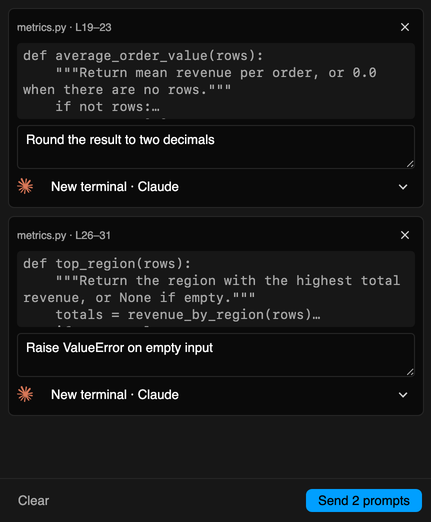
Prompts for the same destination go in one numbered message. The queue stays when you reload the page. To remove all prompts, select Clear.
Keyboard shortcuts in the prompt box
Section titled “Keyboard shortcuts in the prompt box”| Shortcut | Action |
|---|---|
| Enter | Send the prompt |
| Shift+Enter | Start a new line |
| Cmd/Ctrl+Enter | Add the prompt to the queue |
| Esc | Close the prompt box |